
Best Video Resizers for 9:16 Reels & Shorts (2026)
How to resize video to 9:16 without cutting people out: cropping vs padding vs smart reframing, what to look for, and an honest look at six video resizers for Reels and Shorts.
Quick answer: To resize video to 9:16 without cutting people out, use a tool with smart reframing, which follows the subject. A fixed center crop or padding won't do that. Good options include AiClipy (smart auto-crop plus captions in one pass, pay per use), CapCut and Kapwing (online editors with AI reframing or speaker focus), and Adobe Premiere Pro or DaVinci Resolve Studio (desktop editors with Auto Reframe and Smart Reframe). If your footage is wide, like a screen share or a two-person shot, padding with a blurred background is often the better choice.
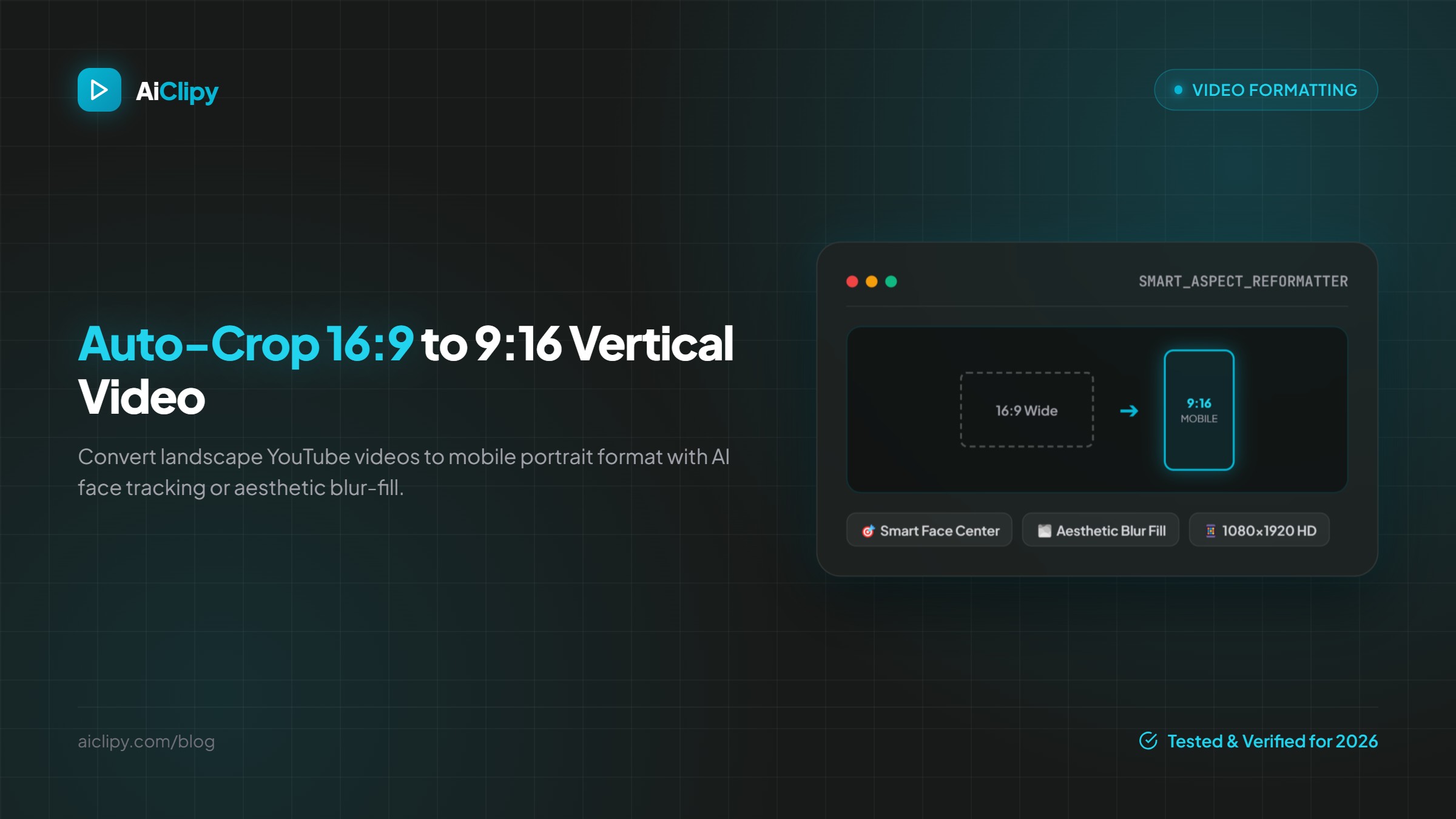
This guide helps you choose a tool. If you already have one and want the step-by-step process, read our walkthrough on how to auto-crop 16:9 to 9:16 vertical video. The tools below are listed in no particular order. This is not a ranking, and we have not scored them. Each one suits a different kind of creator, and one of them (AiClipy) is our own product, so we've kept every description to what the vendors' own pages say.
Cropping vs padding vs smart reframing: what each does to your framing
Every 16:9 to 9:16 converter does one of three things to your picture. Knowing which one a tool uses tells you more than any feature list.
| Method | What happens to the frame | What you lose | Works best for |
|---|---|---|---|
| Center crop | Keeps a fixed vertical slice from the middle of the 16:9 frame and fills the 9:16 canvas with it | Roughly two-thirds of the width. Anyone off-center is cut out | Footage where the subject stays in the middle |
| Padding (fit / blur fill) | Shrinks the whole 16:9 frame to fit the width and fills the top and bottom with a color, an image or a blurred copy of the video | Nothing is cut, but the picture is small on a phone screen | Screen recordings, slides, wide group shots, sports |
| Smart reframing | Detects a face or subject and moves the crop window to follow it, shot by shot | The edges of the frame, but the window follows the action | Talking heads, interviews, podcasts, vlogs |
The math explains why a plain crop is risky. A 1920×1080 frame is 1,920 pixels wide. To get a full-height 9:16 slice out of it, you keep only about 608 pixels of that width. That's about a third of the picture. A smart crop window, which some tools call auto reframe, makes that third the right third. Padding keeps everything but makes it smaller.
What to look for in a video resizer for Reels and Shorts
Before you compare brands, decide what your footage and your workflow need. These five points separate the tools in practice:
- Face or subject tracking. If people move around or more than one person speaks, you need a crop that follows them. Check whether the tool only centers once or keeps tracking through the clip, and whether you can correct the result by hand.
- Several aspect ratios from one upload. Most creators post to more than one place: 9:16 for TikTok, Reels and Shorts, 1:1 or 4:5 for the Instagram and Facebook feeds, and 16:9 for YouTube. A tool that handles all four saves you a re-upload. Our social media video sizes guide lists which ratio each platform expects.
- Captions in the same step. Vertical video is usually watched with the sound off, so it almost always needs captions. If your resizer and caption tool are separate apps, you export twice, and the captions may sit in the wrong place after the crop.
- Export quality. For 9:16, aim for 1080×1920. Cropping a 1080p source to vertical and scaling it back up softens the image a little. That's normal, but check that the tool doesn't also export at 720p on top of that.
- Watermark and pricing model. Free tiers often add a watermark, cap the export resolution or limit how many uses you get. Decide whether you prefer a monthly subscription, a one-time software license or pay-per-use credits.
Tools that resize video to 9:16 (described honestly, no scores)
Details below come from each vendor's official pages as of November 20, 2026. Features and plans change often, so check the linked page before you buy.
AiClipy
AiClipy's AI Captions editor is a browser-based tool that combines smart auto-crop and captions. You upload one video up to 15 minutes long from your phone or computer, from Google Drive, or from a YouTube, TikTok, Instagram, Facebook or X link. Smart auto-crop reframes the video for the new format, and you can switch the layout to 9:16, 1:1, 4:5 or 16:9. A blur-fill layout is available for footage that shouldn't be cropped. In the same pass you add animated, word-timed captions (43+ presets), emojis, a brand logo and, if you like, a caption translation into 45+ languages. Then you export a 1080p MP4 or post directly to TikTok or YouTube.
If you start from a long recording, AI Clips turns a video of up to 10 hours into up to 10 vertical short clips with captions. It costs 3 credits and unlocks with any credit pack. Pricing is pay-per-use: one-time credit packs from $9, with no subscription and credits that never expire. New accounts get 1 free credit for AI Captions, and that export carries an AiClipy watermark. Any purchase removes the watermark. Best fit: creators who want the crop, captions and upload done in one place without a monthly plan.
CapCut
CapCut has an Auto Reframe feature on mobile, desktop and the web. It adjusts the composition for a new aspect ratio while keeping the main subject in frame. On desktop you find it under Video → Auto Reframe, and on mobile under Adjust → Auto Reframe. CapCut's own help center says Auto Reframe now requires CapCut Pro, and some of its pages note that availability varies by region. Best fit: people who already edit in CapCut and have, or want, a Pro subscription.
Adobe Premiere Pro (Auto Reframe)
Premiere Pro's Auto Reframe analyzes your footage and reframes it for square, vertical or 16:9. You can apply it to a single clip or to a whole sequence, then adjust the resulting keyframes by hand. Adobe advises against running Auto Reframe several times on the same clip, because the results become unpredictable. It's a full professional editor, so captions, color and audio stay in the same project. Premiere Pro is sold as an Adobe Creative Cloud subscription. Best fit: editors already working in Premiere who want vertical versions of a finished timeline.
DaVinci Resolve (Smart Reframe)
DaVinci Resolve comes in a free version and a paid Studio version. Blackmagic Design lists Smart Reframe among the DaVinci Neural Engine features that are exclusive to DaVinci Resolve Studio, which is a one-time purchase rather than a subscription. The free version can still make a 9:16 timeline: you set a vertical resolution and position or keyframe the crop yourself. That's slower, but it costs nothing and has no watermark. Best fit: people comfortable with a desktop editor. Use the free version if you don't mind manual reframing, or Studio if you want automatic tracking with a one-time license.
Kapwing
Kapwing's Video Resizer runs in the browser and offers platform presets (YouTube 16:9, TikTok and Reels 9:16 and more) or a custom size. It has three methods: Fit to Center (padding), Fill and Crop, and Speaker Focus, an AI option that keeps active speakers in frame. Kapwing says the resize tool itself is free for all users and that its AI-powered tools need a Pro plan. Check the current plan page for watermark and export-resolution limits. Best fit: teams that want a simple browser editor with collaboration.
VEED
VEED's resize video tool lets you pick preset sizes such as 9:16, 1:1 and 16:9, drag the crop edges or use "Fit to Canvas". You can then add captions and brand assets in the same editor. VEED says resizing itself is free and that paid plans unlock more features. At the time of writing, its resize page doesn't document automatic subject tracking for video, so expect to set the framing yourself and test with your own clip. Best fit: quick manual resizing plus captions in a browser.
Comparison table: auto-tracking, free tier and pricing model
Checked on November 20, 2026 against each vendor's official page (linked above). We list pricing models, not prices, because competitor prices change often. Verify the current figure on the vendor's site.
| Tool | Platform | Automatic subject tracking | Free option | Pricing model |
|---|---|---|---|---|
| AiClipy | Web (browser) | Yes, smart auto-crop (9:16, 1:1, 4:5, 16:9) | 1 free credit for AI Captions, watermarked export | One-time credit packs from $9, no subscription |
| CapCut | Mobile, desktop, web | Yes, Auto Reframe | Free editor, but Auto Reframe needs Pro | Subscription (Pro) |
| Adobe Premiere Pro | Desktop | Yes, Auto Reframe | No permanent free tier | Subscription (Creative Cloud) |
| DaVinci Resolve | Desktop | Studio only (Smart Reframe) | Free version, manual reframing | Free, or a one-time Studio license |
| Kapwing | Web | Yes, Speaker Focus | Resize tool free; AI tools need Pro | Free plan plus paid plans |
| VEED | Web | Not documented on its resize page | Resizing free | Free plan plus paid plans |
Quick guide: when padding (blurred background) beats cropping
Smart reframing is the right default for one person talking to the camera. For other footage, padding with a blurred copy of the video behind it often works better. Use this check before you export:
- Is the important information spread across the full width? Screen recordings, slides, spreadsheets, product demos and gameplay HUDs lose meaning when cropped. Use padding.
- Are two or more people on screen at once? A crop can only follow one of them, or it swings back and forth between them. If both reactions matter, use padding. If they speak in turns, smart reframing that follows the active speaker can work.
- Is there fast, wide action? In sports, dance or driving footage, a tracking crop can lag behind the subject. Padding keeps the whole play visible.
- Is there burned-in text near the edges? Lower thirds and existing subtitles get cut off by a crop. Pad, or remove the old text first.
- Where will your captions go? With padding, the empty area above or below the video is a natural spot for captions, so they never cover a face. With a crop, place captions in the lower-middle area and away from the bottom edge, where platform buttons and descriptions sit.
If the answer to all five is "no", crop with smart reframing so the picture fills the phone screen. For platform-specific templates, see our YouTube Shorts maker and Instagram Reels maker pages.
Frequently Asked Questions
How do I convert 16:9 to 9:16 without cutting people out?
Use a smart reframing or auto-crop tool that detects faces and moves the crop window to follow the speaker, such as AiClipy, CapCut Auto Reframe, Kapwing Speaker Focus, Premiere Pro Auto Reframe or DaVinci Resolve Studio Smart Reframe. If two people must stay visible at the same time, use padding with a blurred background instead of a crop.
What resolution should a 9:16 video be?
1080×1920 pixels (1080 wide, 1920 tall) is the standard for TikTok, Instagram Reels and YouTube Shorts. If your source is 1080p landscape, the vertical crop is upscaled to reach that size, so start from 4K footage when you can for the sharpest result.
Can I resize and add captions at the same time?
Yes. Several tools put both in one editor. In AiClipy, smart auto-crop and animated word-timed captions are applied in the same pass, and you export a single 1080p MP4. Doing both together also means you place the captions on the final vertical frame, not on the original wide one.
Is there a free way to resize video to 9:16?
Yes. The free version of DaVinci Resolve lets you build a vertical timeline and reframe by hand without a watermark. Kapwing and VEED say their basic resize tools are free. Automatic tracking is usually a paid feature: CapCut Auto Reframe needs Pro, and Resolve's Smart Reframe needs Studio. AiClipy gives new accounts 1 free credit for AI Captions, with a watermark on that export.
What's the difference between auto reframe and smart crop?
They are mostly different names for the same idea: software finds the subject in each shot and moves a crop window to keep it in frame. Some tools re-check the subject continuously, while others pick a position per shot. Either way, preview the result and fix any shot where the crop drifts.
Should I use 4:5 or 9:16 for Instagram?
Use 9:16 for Reels and Stories, where the video fills the phone screen. 4:5 is a good fit for feed posts, because it takes up more of the screen in the feed than a square. If you post the same clip in both places, export both ratios from the same source.
Ready to Create Viral Videos?
Add animated AI captions, auto-crop to 9:16 and turn long videos into short clips for TikTok, Reels and Shorts. New accounts get 1 free credit (free-credit exports include an AiClipy watermark; any credit pack removes it), and credits never expire.
Written by AiClipy Team
The AiClipy team builds AiClipy, an AI tool for animated captions and turning long videos into short clips. We write practical guides on short-form video; product facts are checked against the app, and posts about tools say when a price or feature was last checked.
Related Posts

Best Time to Post on TikTok, Instagram Reels and YouTube Shorts in the US (2026 Guide by Time Zone)
There is no single magic hour, but there is a smart starting point. How to pick posting times for a US audience across Eastern, Central, Mountain and Pacific time, and how to find your own best time in two weeks.
How to Turn a Long Video into Shorts with AI: Repurpose 1 Video into 10 Clips (2026)
Turn one long video into up to 10 vertical clips for YouTube Shorts, TikTok and Instagram Reels: how AI picks the moments, a step-by-step workflow, platform limits and a posting plan.